The scope and waterfall
Read the spectrum, click to tune, zoom and pan, set the waterfall speed and show DX spots on it.
Updated 24 Nov 2026
On this page
The console shows the radio's scope — the live spectrum — with a scrolling waterfall under it, across the top of the station above the panels. It follows the active VFO, so whatever you tune is in view.
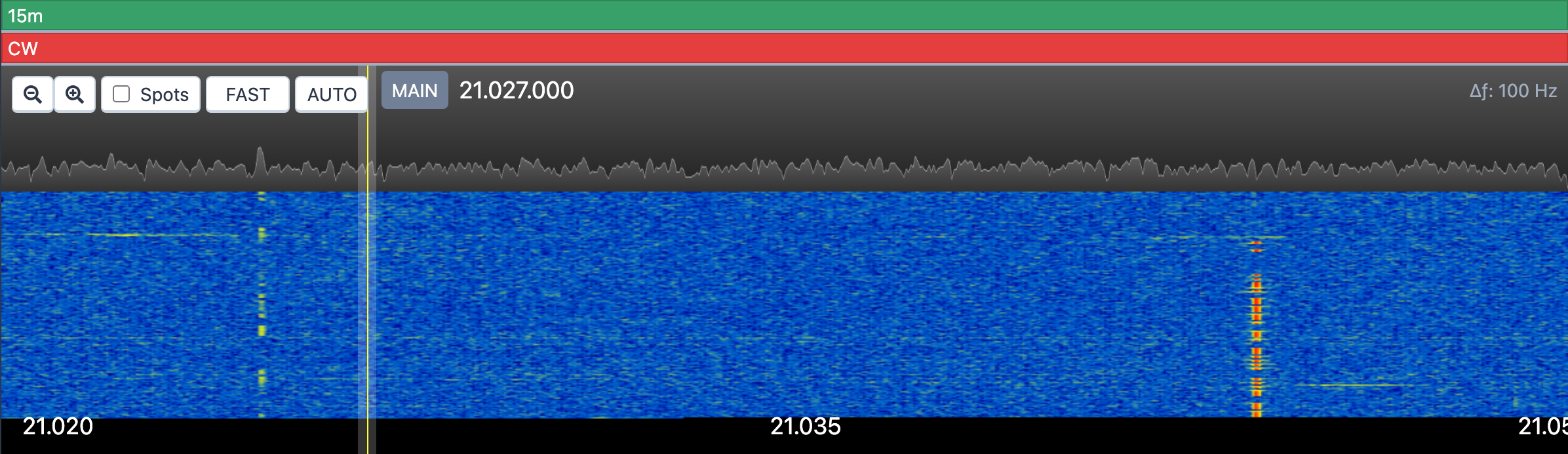
Reading the display
The strip above the spectrum marks the band segments; click a marker to zoom to that segment. The active VFO is drawn as a vertical line at its frequency with its passband shaded. ∆ƒ in the top right is the tuning step the display is using at the current zoom; clicks and drags snap to it.
Tuning with the mouse
- Click anywhere on the spectrum to tune the VFO there. As you hover, a gray ghost shows where it will land.
- Drag the VFO marker to retune it smoothly.
- Drag the background to pan up or down the band, within the span the radio allows.
- Roll the mouse wheel to zoom in and out around the pointer. At Flex stations the magnifier buttons in the top left zoom too.
On a touch screen, drag with one finger to pan and pinch with two to zoom.
Controls
The buttons in the top left:
- The two magnifier buttons zoom out and in (Flex stations only).
- Spots draws DX cluster and RBN spots as flags on the waterfall. Click a flag to tune to it; right-click one for Hide for 1h, Hide for 24h or Hide for 48h. The same switch is under Tools → Console Settings → View → Show Spots on Waterfall. See DX spots.
- Speed cycles the waterfall rate: SLOW, MID, FAST.
- The reference level reads AUTO while the console sets it for you. Click it to set the level by hand, in dB, with the slider.
- AF, at Icom stations, switches to the audio waterfall; see below.
When the FT8 panel is active, the top right offers Locked to VFO / Unlocked at Flex stations. Locked keeps the display on the FT8 sub-band so the decodes line up with the waterfall; see FT8 in the console. At Icom stations the digital modes show the audio waterfall instead (below). In the digital modes a click on the display sets the receive frequency and a right-click the transmit frequency; as you move the pointer, the audio frequency under it is shown beside it in Hz (1500 Hz in the middle of a 3 kHz view), so you can see what a click will set. The pointer turns into a cross where a click sets a frequency.
The audio (AF) waterfall at Icom stations
An Icom radio's scope cannot show less than 5 kHz, at about 10 Hz per point. Tick AF in the top left to see the station's receive audio instead: what you hear, from 0 Hz to 3000 Hz, at about 6 Hz per point (about 1.5 Hz in Q65 and JT65). Untick it to go back to the radio's scope.
- The view is of the audio, not of the band, so it has no VFO markers, and it does not pan, zoom or click to tune. Spot flags are shown in the digital modes only. The band markers above it still show which part of the band you are on, but clicking one does nothing. Tune with the VFO as usual and watch the signals move through the passband.
- In the digital modes (FT8, FT4, Q65 and JT65) AF is always on and cannot be unticked, since those modes work in audio frequencies. The RX and TX markers and the JT65 decode window are drawn on it, and a click still sets the receive frequency.
- Speed sets how many rows are averaged into each line: FAST draws each row, about ten a second (about three in Q65 and JT65, whose rows are finer), and MID and SLOW average two and four, which steadies the noise so that a weak steady signal stands out.
- The reference level control is grayed out, since it sets the radio's scope. The audio waterfall sets its own level from the noise in the passband: weak signals get most of the brightness, and strong ones are compressed so that they keep their shape.
- While you transmit, the waterfall shows what you are sending: your microphone audio in the voice modes, and in the digital modes the tones the station is transmitting, at your TX frequency.
- Your choice is saved to your account, so it follows you between browsers.
- The AF button appears only at Icom stations that can send the audio waterfall. If the station's software is too old to send it, the radio's scope stays, whatever AF says.
Drag the handle under the waterfall to change its height.
Related articles
-
Operating the console
Tuning and the VFO
Type a frequency, pick a band and mode from the presets, and tune with knobs, buttons or a slider.
-
Operating the console
Icom radios
The Icom radio panel — VFO A and B, split, XFC, filters and receive settings, FM repeaters, and the transmit controls.
-
Operating the console
DX spots
The DX cluster and RBN in the console — filter spots, see what you still need, and tune and turn the beam in one click.
-
FT8, FT4 & Q65
FT8 in the console
Decode FT8 at the station and work it from the console, with no software, audio cables or virtual sound cards.
Still stuck?
Tell us what you were trying to do and what happened, and we'll help.